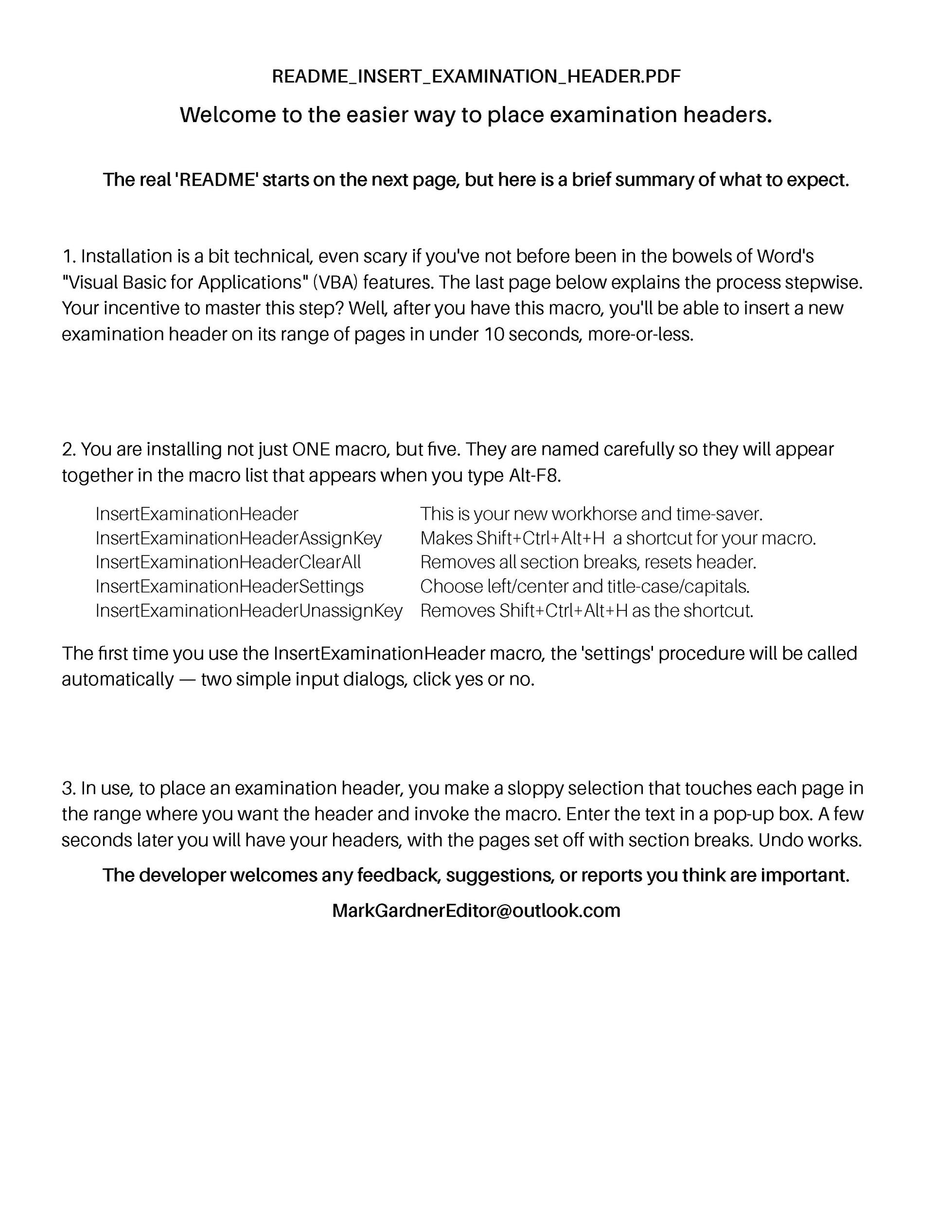
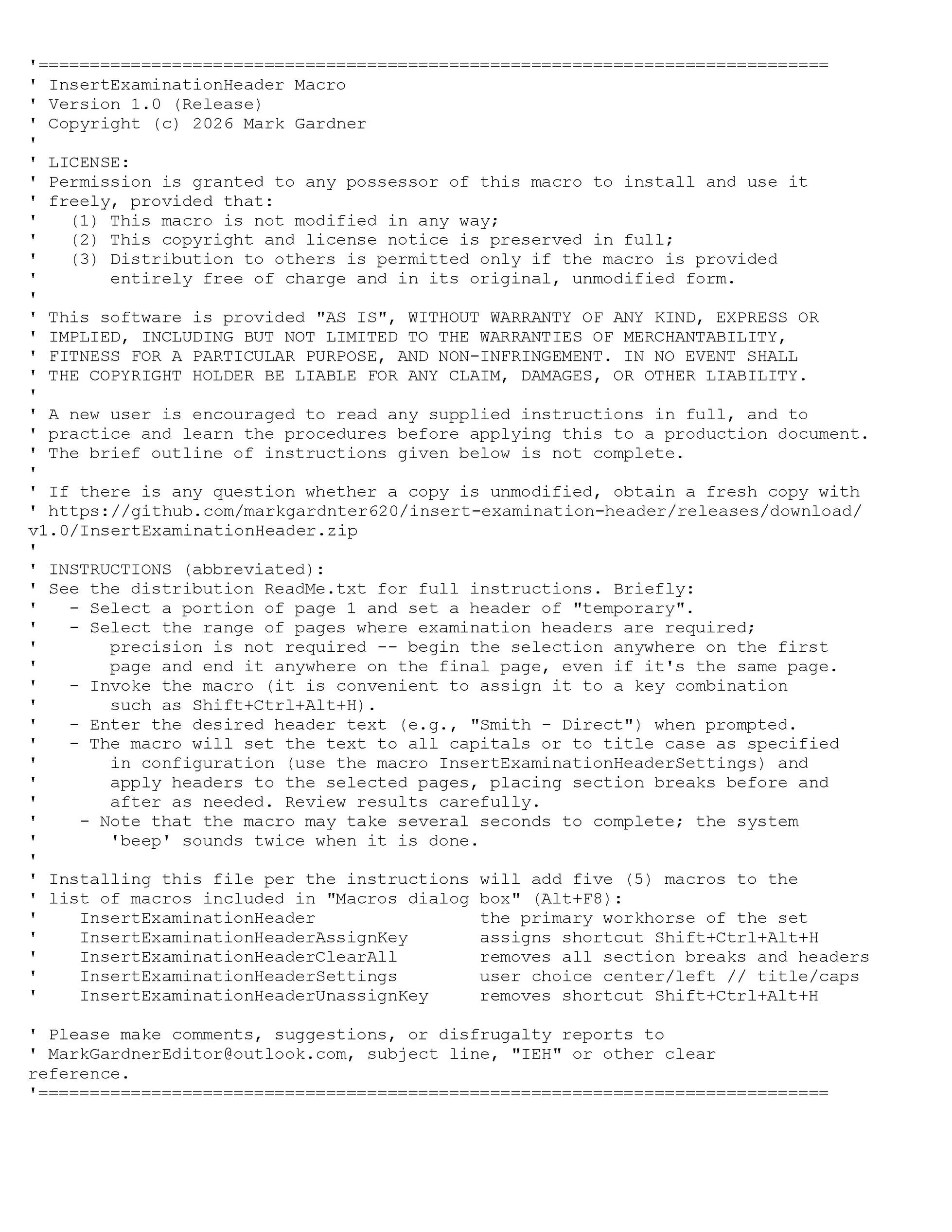
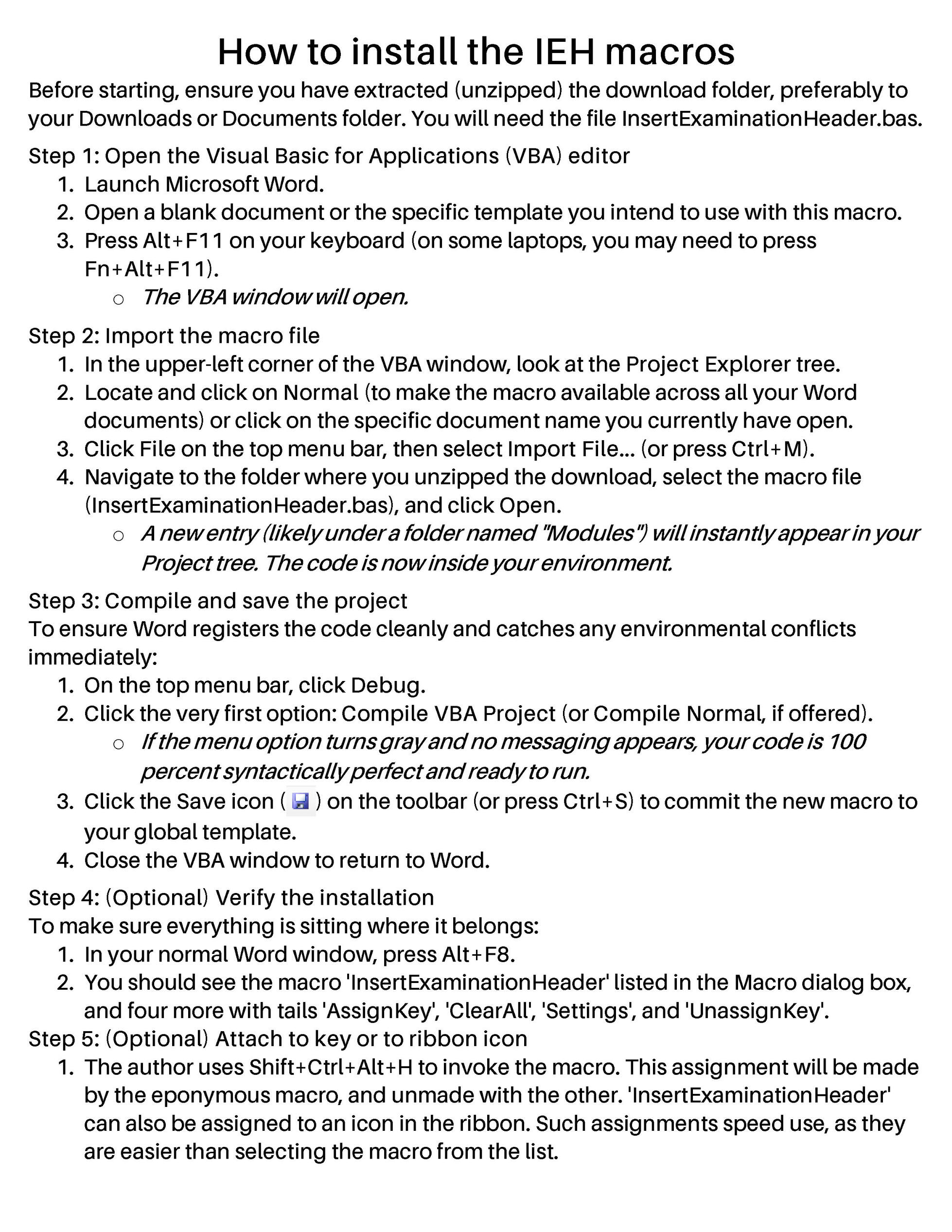
Release version is available at
https://github.com/markgardnter620/insert-examination-header/releases/download/v1.0/InsertExaminationHeader.zip
The button below will download the ZIP file containing the Word VBA macro set.
The ZIP file contains the 'DISTRIBUTION README' given herein, the 'install' .bas file, etc.

InsertExaminationHeader is a purpose‑built Word macro for legal transcriptionists that automates examination headers. No more manual fixes, lost formatting, or unwanted cross‑section proliferation. And undo works — one Ctrl‑Z gives you a second chance at getting things right, without endangering the transcript.It is simple to use: drag a selection that spans the pages where the examination header should appear — the selection doesn’t need to be precise; it only marks the page range. Enter the header text in a pop‑up, and the macro handles the rest. The headers appear correctly capitalized, centered, and placed in their own properly isolated section, without disturbing any other part of the transcript.
A macro to insert examination headers
Written by a retired embedded systems engineer; replaces tedious manual placement of section breaks, removal of 'link-to-previous' settings, and insertion of text into headers.
Note that this is a fictional manuscript; please don't expect consistency; it's just for the demonstration.
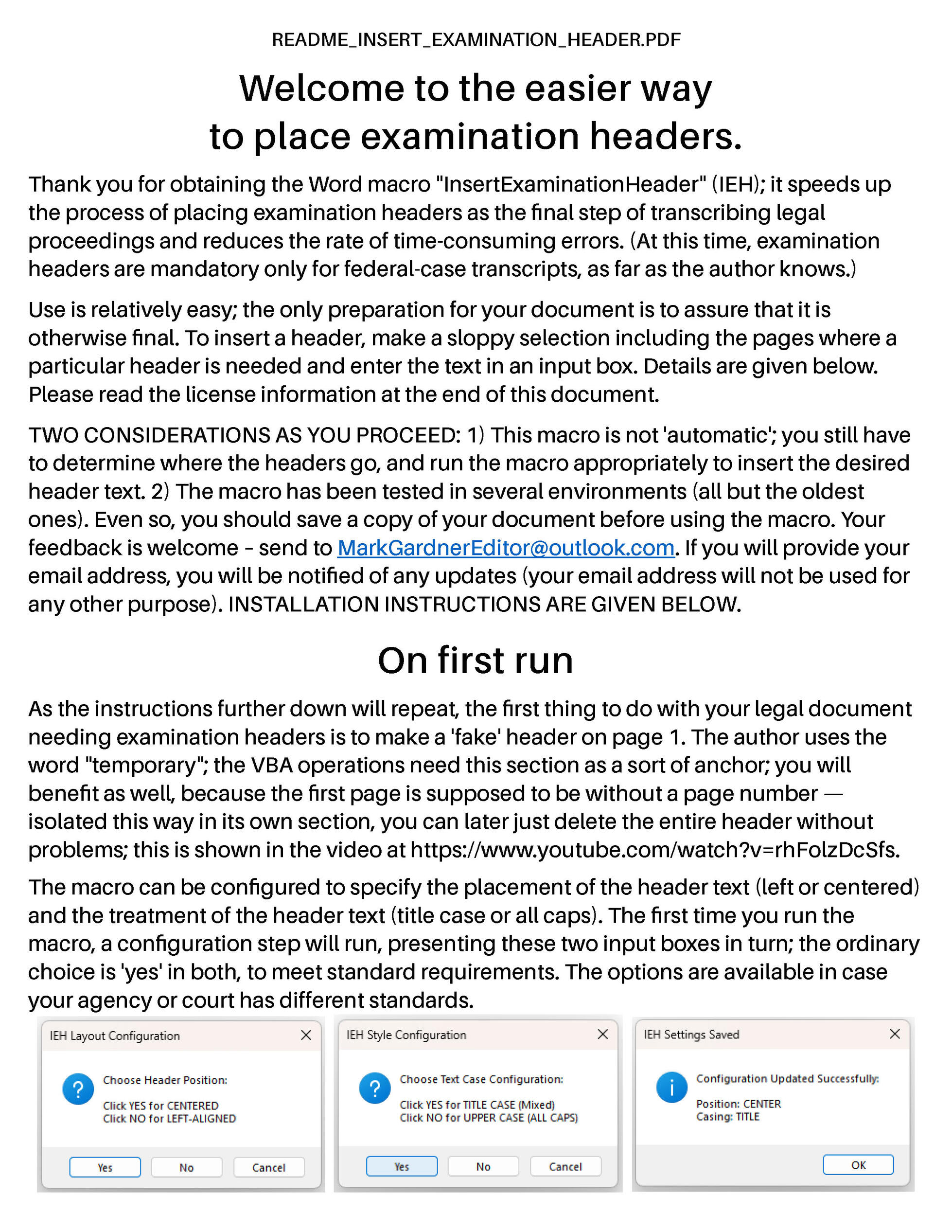
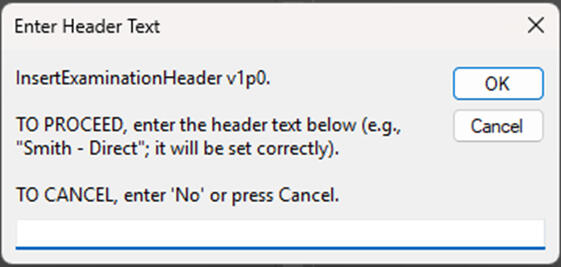
Note that the page images below show the header-text dialog as it was in the beta version.
The image at the right is the release version.
Even though your transcript is probably not in danger from anything the macro does — it is well tested — it still is good practice to save the document before applying the macro to insert examination headers. The image to the right is the release version of the header-text dialog.
Page 1 always gets the first header – a place holder, but still useful.
(To see detail, right-click on image and open in new tab.)
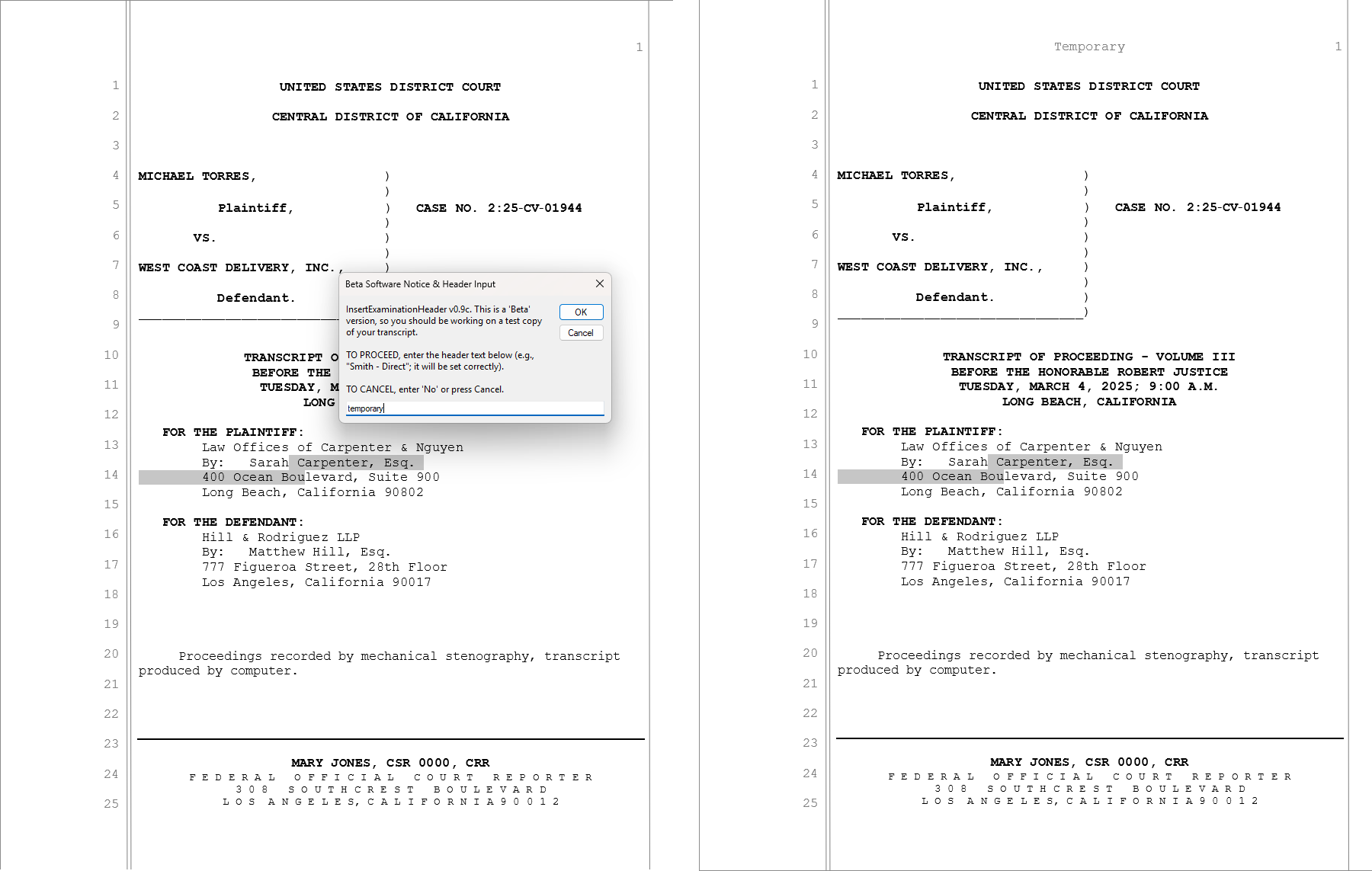
Inserting a 'temporary' header on page 1 serves two purposes – it provides an 'anchor' that Word needs for placement of subsequent examination headers, and also separates page 1 into its own section (image just below) so it is easy to remove the page number later. The position of the initial selection to identify the page is not at all critical.

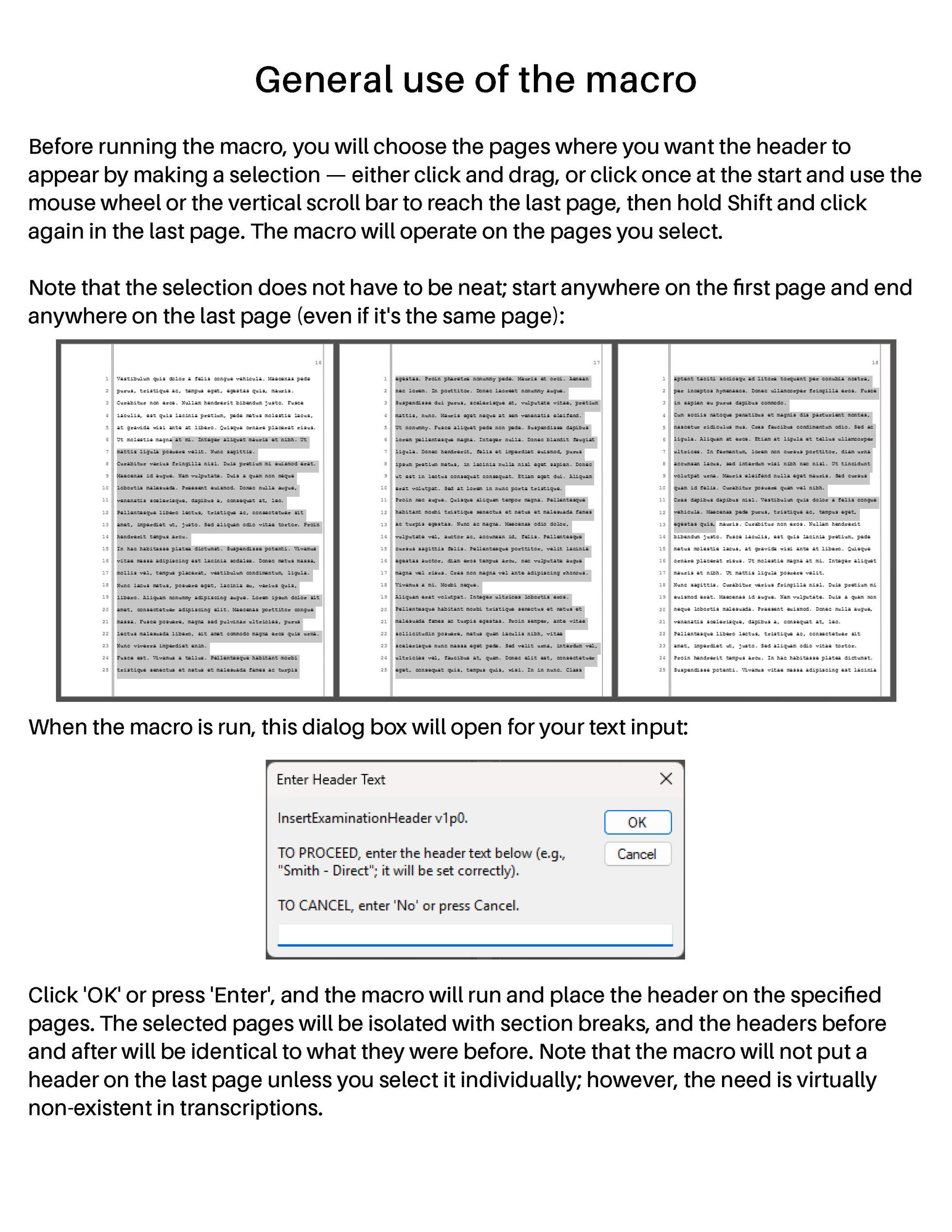
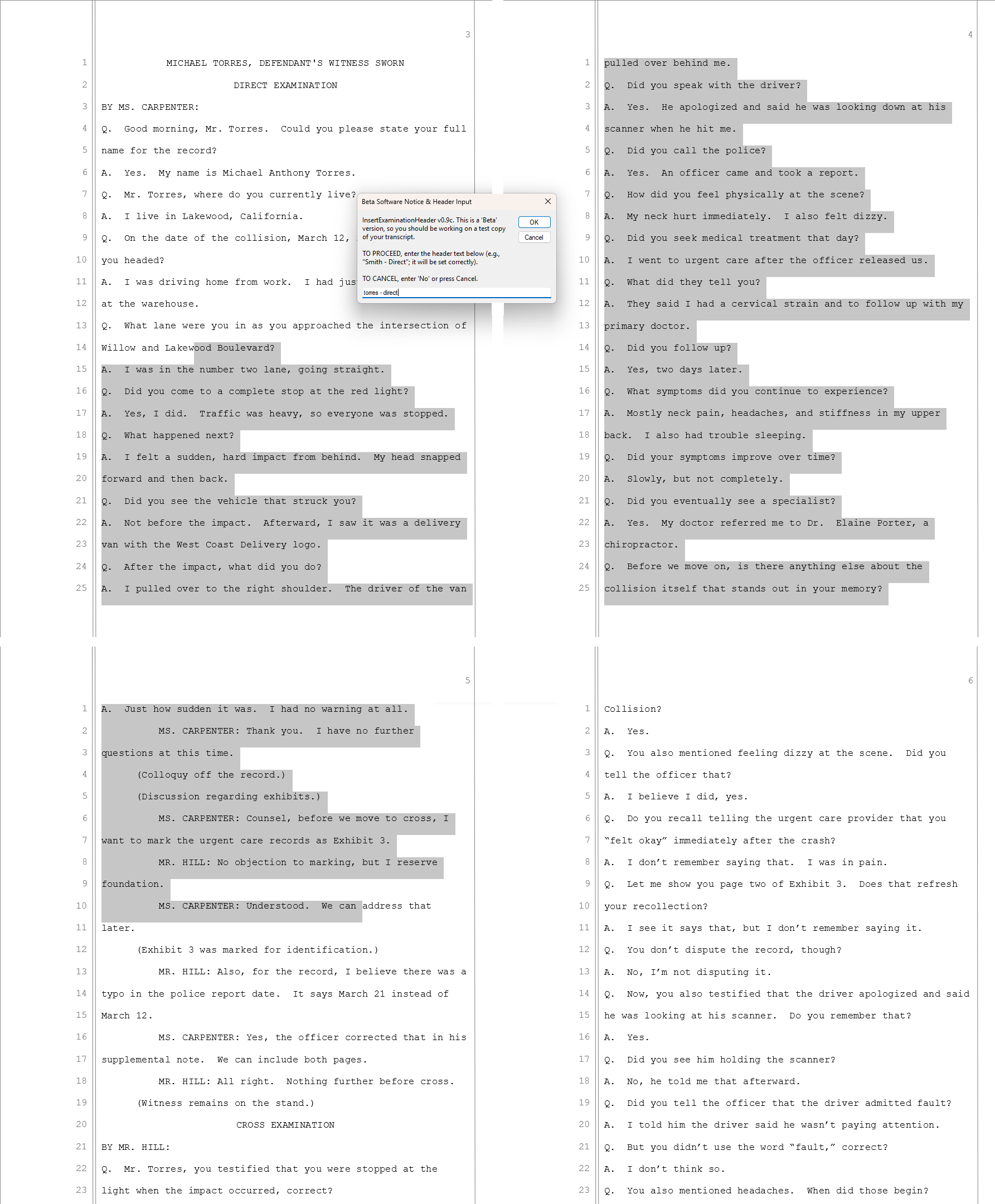
After dealing with page 1, inserting the other headers is just a matter of placing a sloppy selection that touches every page in the range where the new header is to be inserted. Select either by click/hold/drag, or by click/move/shift-click; start somewhere on the first page and end somewhere on the last page (even if it is the same page, as was shown with the page 1 selection above).
Here, the pages needing "Torres - Direct" are selected, the macro invoked, and "torres - direct" entered in the input dialog:
(To see detail, right-click on image and open in new tab.)
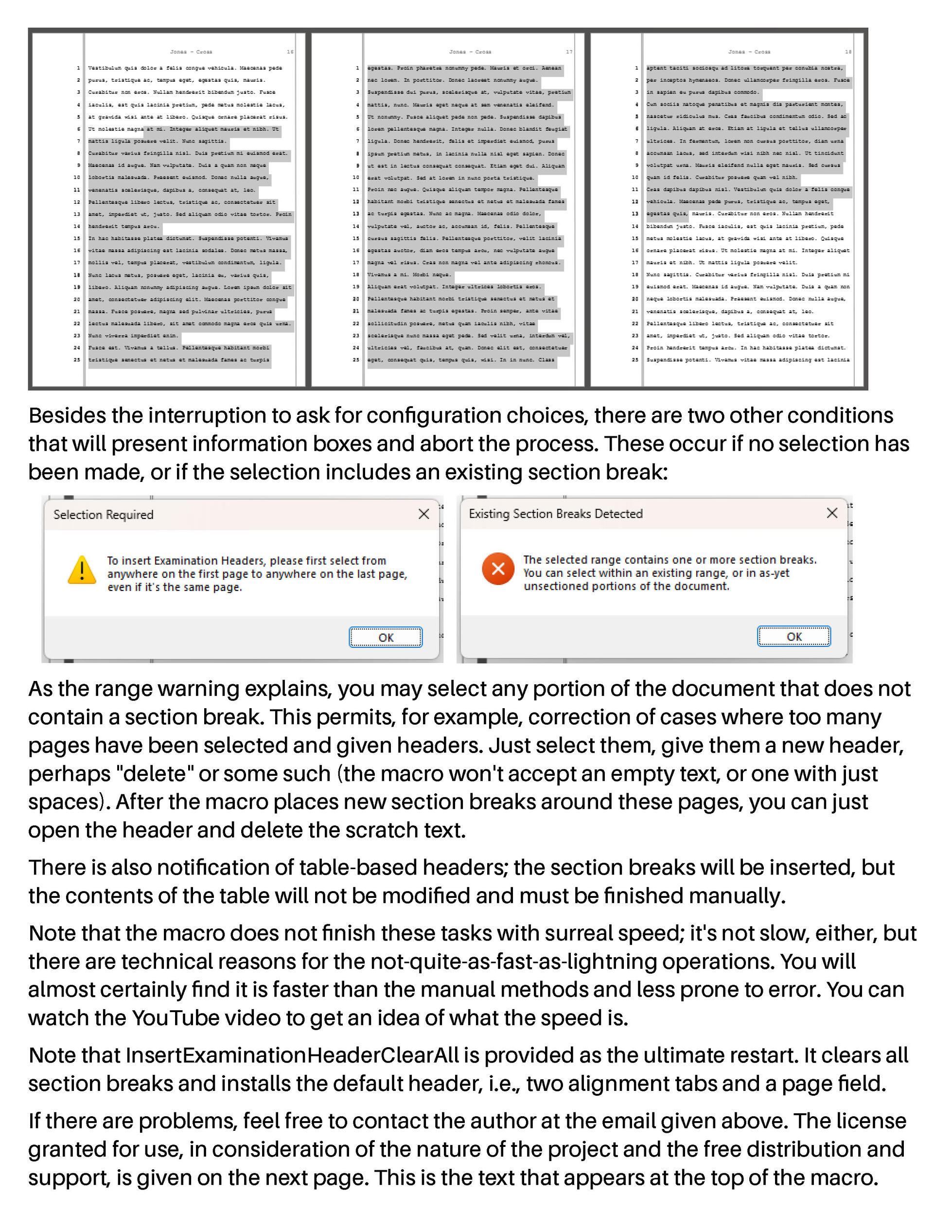
The new examination header is inserted properly, within seconds:
(To see detail, right-click on image and open in new tab.)
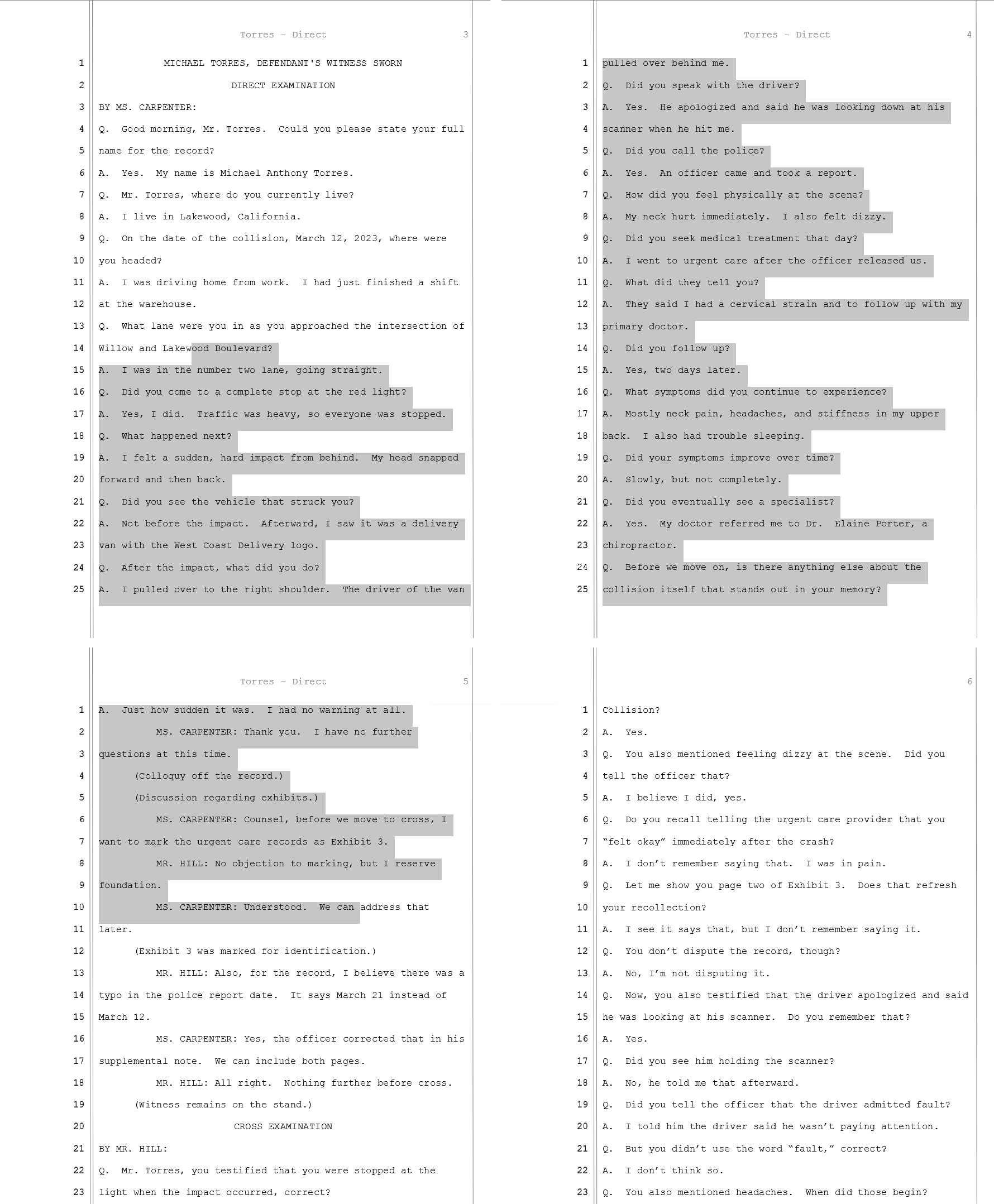
That's the extent of it; what was tedious becomes less tedious, what took many seconds (even minutes) now takes less; the chance of forgetting a link-to-previous is eliminated. The only header you'll have to edit is the one on page 1.
The form merely sends an email to [email protected].
Your email will be held in confidence, and not used for any purpose
other than response and update when there is news or change.
In particular, the website host's option to 'Collect UTM Data' is disabled.
(To see detail, right-click on image and open in new tab.)